
Applications (IA)
Interlocutory Applications (IAs) are interim applications filed within a case to seek specific orders before the final judgment, for example a stay, an interim injunction, or condonation of delay. NyayX tracks IAs as their own tab on every case, and gives you a workspace-wide register to see every pending application across all cases at once.
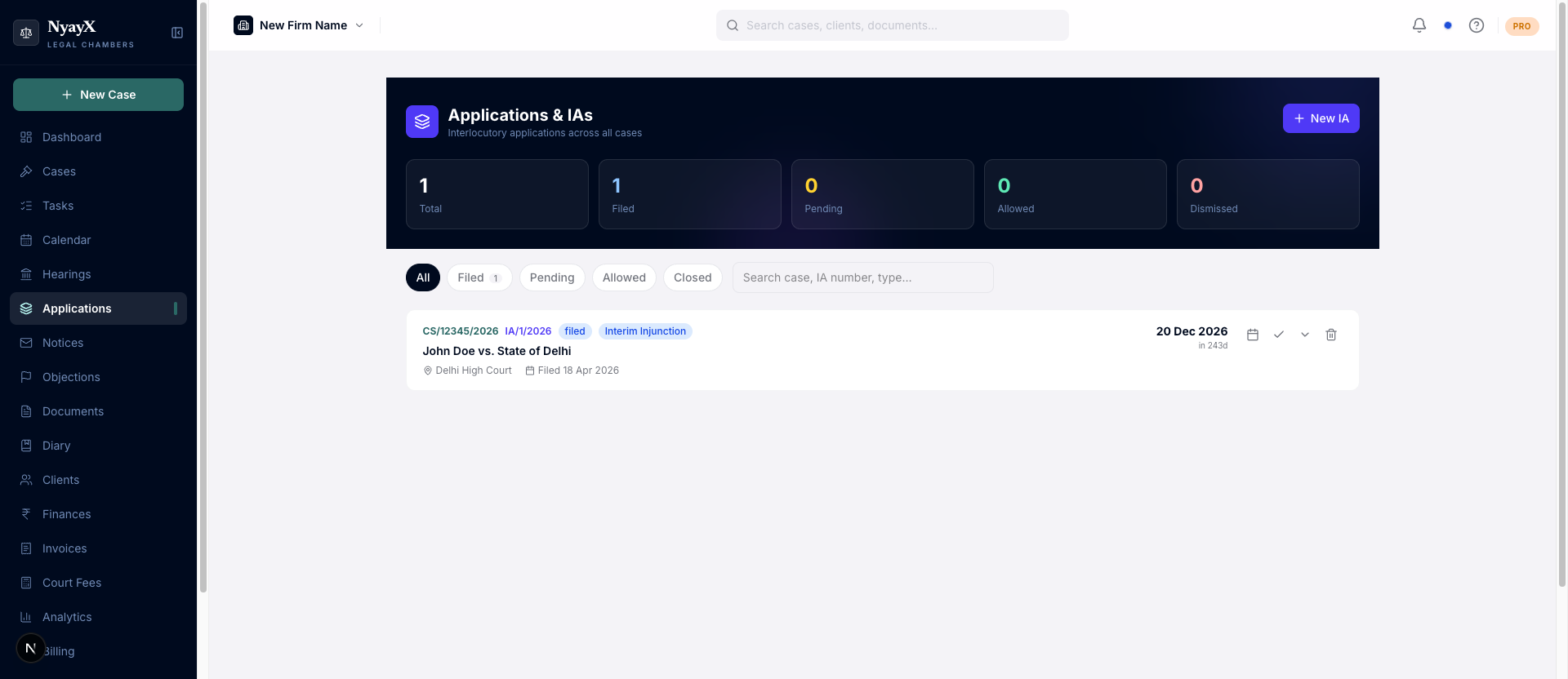
Applications / IAs: workspace-level register of every IA across your cases
Open a case and click the Applications / IAs tab in the case detail tab bar.
Click Add Application. Fill in:
- IA Type: pick from the standard set: Interim Injunction, Ad-Interim Injunction, Stay Application, Status Quo, Attachment Before Judgment, Local Commissioner, Condonation of Delay, Caveat, Bail, Anticipatory Bail, Recall of Order, Exemption, Amendment of Pleadings, Impleadment, Exemption from Filing, Additional Documents, Restoration, Substitution, Injunction, Seeking Time, or Other
- IA Number: e.g., IA No. 1234/2024
- Filed By: if the case has parties added, this is a dropdown of petitioners/plaintiffs and respondents/defendants by name, plus a Court (suo motu) option. Otherwise it’s a free-text field.
- Filing Date: when the application was filed
- Next Date of Hearing (NDOH): the date the IA is next listed for hearing
- Description: brief note on the relief sought
The Court field is filled in automatically from the case’s court name, so you only need to override it if the IA is being heard elsewhere.
Each application card has a Pleadings section for the back-and-forth on the IA itself:
- Click + Mark counter-affidavit filed once the opposite party’s reply comes in, and record who filed it and when.
- Click + Mark rejoinder filed once your side’s rejoinder is filed.
Both are timestamped and stay visible on the card so you can see the pleadings status of every IA at a glance.
Click Record Outcome on the application to update:
- Status: Filed (default), Pending, Allowed, Dismissed, Withdrawn, Disposed, or Modified
- Order Date: the date the court passed the order
- Order Notes: a short summary of what the court ordered
You can edit or delete an application at any time from the same card.
Workspace-level Applications view
The /ia page lists every IA across your workspace, sorted by next date of hearing. Use the filter tabs (All, Pending, Filed, Allowed, Dismissed) or search by case, IA number, or description.
From this view you can:
- Add a new IA against any case, using the case picker to select which matter it belongs to
- Update the NDOH inline without opening the case
- Record the outcome (status, order date, order notes) directly from the list
- Attach supporting documents to an IA. These are uploaded to the case’s Documents tab and tagged with the IA reference, so you can find them again from either place.
- Delete an application