
Invoices
Invoices live at Invoices in the sidebar (/invoices), a top-level page separate from the Finances section covered elsewhere in this guide.
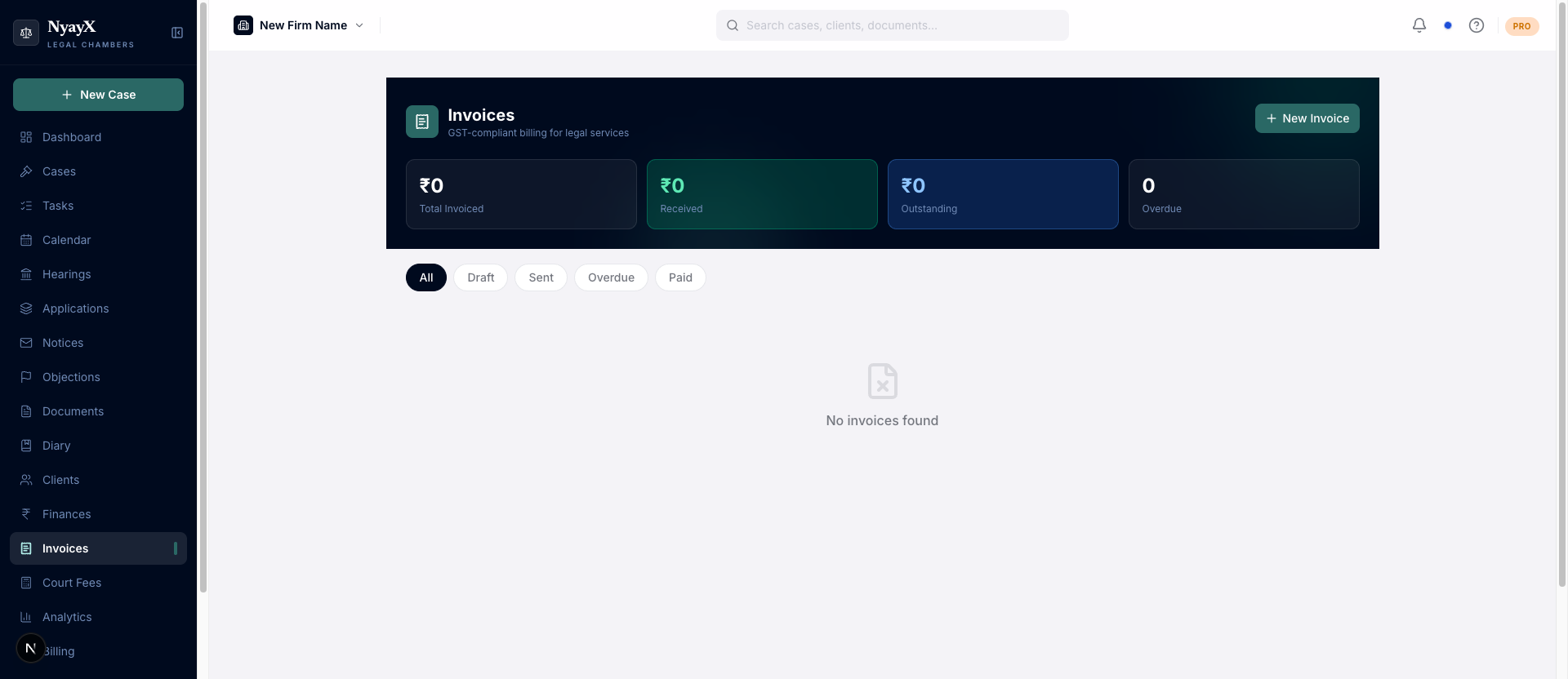
The Invoices list: status, amount, and client at a glance
The header shows four running totals: Total Invoiced, Received, Outstanding, and Overdue (invoice count). These are computed live from your invoice ledger, not entered manually.
Creating an invoice
Click New Invoice in the top right of the Invoices page.
Toggle between By Case and By Client:
- By Case: search and select a case. The client name, GSTIN, address, and state are pulled from the case/client record automatically. If the case has more than one linked client, a Billing to chooser lets you pick which one the invoice goes to.
- By Client: search by client name directly. If that client has exactly one case, it’s auto-selected; with two or more, a dropdown lets you pick (or leave it as “No case”).
Each line has a description, quantity, and rate; the amount is calculated automatically. Mark a line Reimbursable if it’s a pass-through cost (courier, a court fee you paid, etc.) being charged back to the client at cost. Reimbursable lines are excluded from the GST calculation and printed as “(Reimbursable)” on the invoice.
If the invoice is linked to a case, click Pull case expenses to import that case’s logged expenses as line items in one go. Expenses already marked billable on the case come in tagged Reimbursable; the rest come in as normal taxable lines. Remove any you don’t want to bill.
- Invoice date: defaults to today
- Due date: when payment is expected
- Notes: optional terms or notes for the client
If your firm is GST-registered (Settings → Firm Profile), GST is added automatically; see GST & TDS for exactly how the rate and split are chosen. If TDS is applicable, an estimated TDS deduction line is shown for reference only. It doesn’t change the invoice total, since TDS is deducted by the client, not charged by you.
Click Save Invoice. New invoices are always created as Draft.
Invoice numbering
Invoice numbers follow INV-{financial-year}-{sequence}, e.g. INV-2025-26-014. The sequence is per workspace and resets at the start of each Indian financial year (1 April). Credit notes draw from the same sequence, so a credit note gets the next number in line, not a special series.
Invoice statuses
| Status | Meaning |
|---|---|
| Draft | Created but not yet sent |
| Sent | Emailed or manually marked as sent to the client |
| Partially Paid | Some payment recorded, balance still outstanding |
| Paid | Payments recorded add up to the full amount |
| Overdue | Past due date, still unpaid; set automatically by the dunning sweep |
| Cancelled | Invoice cancelled before being paid |
| Voided | The original invoice after a credit note has been raised against it |
| Credit Note | A reversal invoice, linked back to the original it credits |
Sending an invoice
Open the invoice and click Email invoice (or Mark as sent if no client email is on file). This attaches the invoice PDF and emails the client. If the invoice is linked to a case, the email body includes a line with the case number and title, so clients with more than one matter can tell invoices apart at a glance. A draft invoice flips to Sent the moment this succeeds.
Resending is guarded: clicking send again within 10 seconds of the last send is blocked, to stop a double-tap from emailing the client twice. If there’s no client email on file, or outgoing email isn’t configured, the invoice is still marked Sent (or the PDF still generated) with a message explaining why nothing was emailed.
Recording payments
Open the invoice’s Payments panel and click Record payment. Enter the amount, date, mode (cash, bank transfer, cheque, UPI, or demand draft), and an optional reference. Payments accumulate in a ledger:
- Partial payments move the invoice to Partially Paid.
- Once payments add up to the grand total, the invoice flips to Paid automatically.
- If you try to record more than the outstanding balance, you’re asked to confirm before it’s recorded as an overpayment.
- Deleting a payment recomputes the balance and moves the status back accordingly.
When an invoice becomes fully paid, NyayX auto-creates a TDS entry (if applicable) and marks any pending case fees for that case as paid. See GST & TDS for the TDS side of this.
Automated invoices
Beyond manual creation, NyayX can raise invoices on its own when certain triggers fire, if enabled under Settings → Invoice Automation:
- Periodic billing: issues an invoice each time a periodic fee component (weekly/monthly/quarterly/yearly retainer) on a case’s fee structure comes due.
- Milestone auto-invoice: issues an invoice when a case reaches a stage that has a milestone fee component attached.
- Per-hearing billing: issues an invoice when a hearing with a per-hearing fee component is marked completed.
These show up in the invoice list like any other invoice, tagged internally with their source (periodic, milestone, or per-hearing) so you can tell them apart from manually-created ones. The same settings page also controls whether automated invoices are emailed immediately (Email invoice on send) or left as drafts for you to review.
Credit notes
To reverse an invoice that’s already been issued (wrong amount, cancelled matter, etc.), open it and choose Issue Credit Note. NyayX creates a new invoice with the same line items reversed (negative amounts), marks the original Voided, and links the two together. If the original had already been paid in full or in part, the credit note calls that out explicitly: reversing the invoice on paper doesn’t move any money back to the client, so you still need to process that refund yourself.
An invoice that’s already voided, already a credit note, or already has a credit note against it can’t be credited again.
Deleting an invoice
Draft, sent, or cancelled invoices can be hard-deleted. Paid, partially paid, and credit-note invoices are protected; use Issue Credit Note to reverse those instead.