
Month / Week / Day views
The Calendar (/calendar) shows all your hearings, tasks, deadlines, meetings, and applications across every case in one visual schedule. Hearings carry your court colors, so you can tell at a glance which court each hearing belongs to.
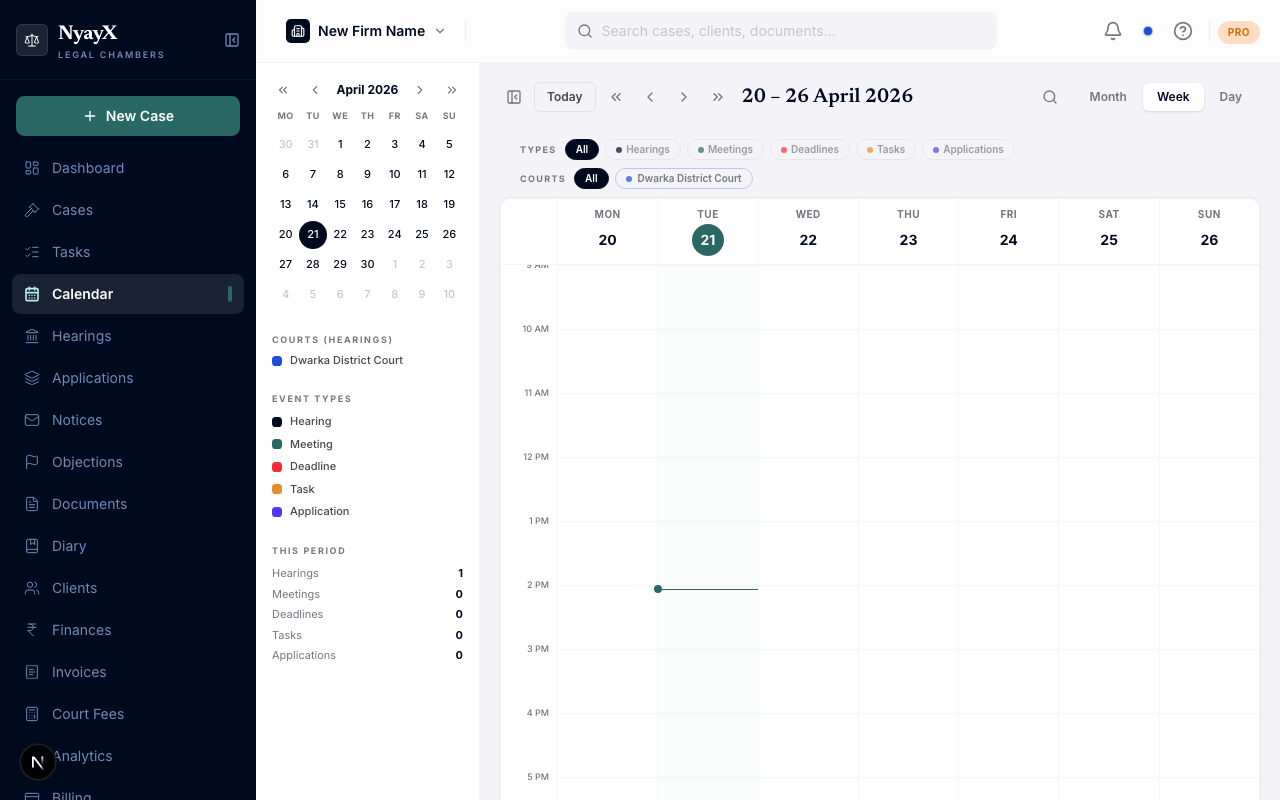
Month view, with colored blocks for hearings by court
Switching views
Use the Month / Week / Day toggle in the Calendar header to switch views:
- Month shows the whole month at a glance. Each day lists its events as small colored blocks. Click a date to drop into Day view for that date.
- Week shows a 7-day grid laid out by time slot. Useful for planning the week ahead.
- Day shows a single day in detail, which helps when you have several events stacked on the same date.
The view you pick and the date you are looking at are both kept in the page address, so you can bookmark or share a link to a specific week or day.
Navigating dates
- Click the ← and → arrows to move to the previous or next period.
- Use the year arrows to jump a full year backward or forward.
- Click Today to jump back to the current date.
- In Month view, click any date to open Day view for that date.
Event types on the calendar
Events are color-coded by type. Hearings use your court color; the other types each use a fixed color.
| Color | Event type |
|---|---|
| Your court color | Hearing |
| Teal | Meeting (client meetings and mediation sessions) |
| Orange | Task due date |
| Red | Deadline |
| Indigo | Interim application (IA) |
| Violet | Caveat expiring |
Tasks appear on their due date and deadlines appear on the deadline date, so your court work and internal to-dos sit next to each other. Completed tasks drop off the calendar automatically. Click any event to open its detail without leaving the calendar.