
Court colors setup
Court colors let you instantly tell hearings from different courts apart without reading the court name. Once assigned, the color shows up as a dot or swatch on every case, hearing card, and calendar event that belongs to that court. Colors are workspace-wide: every team member sees the same color for the same court.
Click Settings in the sidebar, then the Court Colors tab (under the Practice group). You can also get there from the court legend in the top navigation bar: click the colored dots, then Customize colors in Settings.
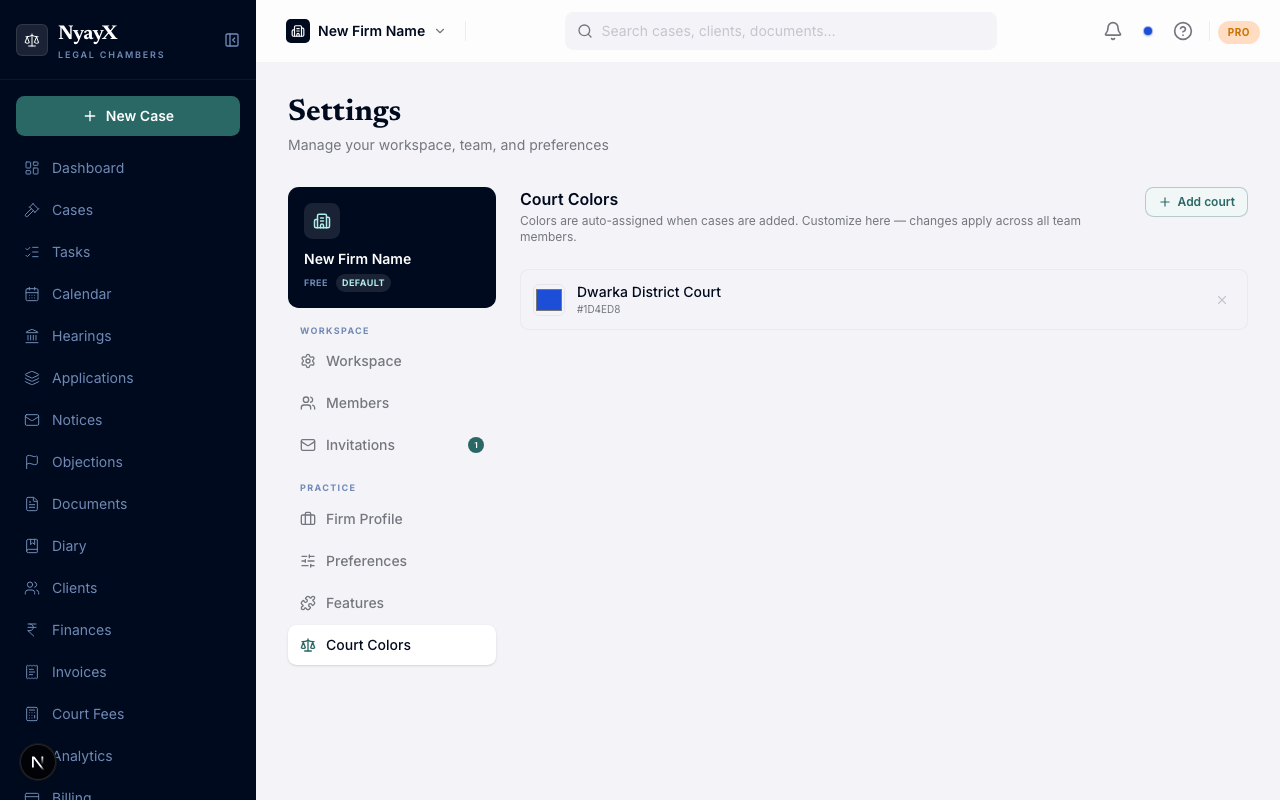
Court Colors tab in Settings, add, edit, or remove court colors
If you already have cases with courts that have no color yet, they show up in an amber banner: “N courts from your cases have no color yet.” You can either:
- Select Auto-assign all to color every uncolored court at once from the palette, or
- Click a single court’s chip to assign it a color individually.
This saves immediately, no separate Save step needed.
Select Add court, type a court name (for example “Tis Hazari District Court”), pick a color with the color swatch, and select Add. This queues the change; you still need to save it (see next step).
Every court with a color shows in a list with its swatch and hex code. Click the swatch to change a color, or the × to remove one. Once you’ve made any manual edit, a Save Changes button appears. Select it to write your changes to the workspace.
Common courts worth adding if you don’t already have cases in them:
- Tis Hazari District Court
- Saket District Court
- Delhi High Court
- Supreme Court of India
- National Consumer Disputes Redressal Commission (NCDRC)
Where colors appear
| Location | How the color shows |
|---|---|
| Cases list | Colored dot next to the court name in the table |
| Case detail overview | Colored dot beside the court field |
| Hearings page | Colored dot on each hearing card |
| Calendar | Event background / border tint |
| Today’s Board | Court grouping accents |
| Top navbar legend | Small preview swatches, click to open the full legend |