
Add your first case
This guide walks you through creating a case, adding a hearing, and confirming everything landed correctly.
Click Cases in the sidebar. On a fresh workspace you’ll see an empty list with a New Case button (also available from the sidebar’s New Case shortcut at the top).
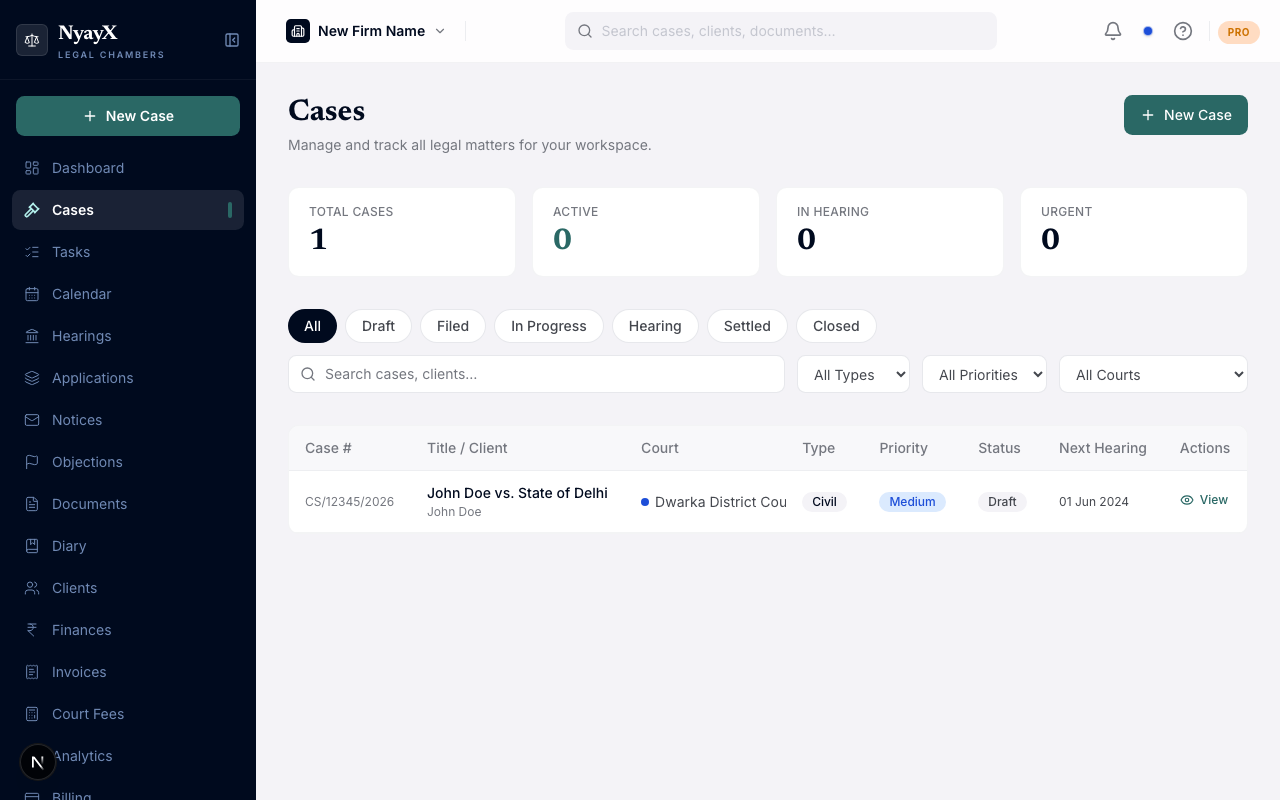
The Cases page, click New Case to begin
The Court dropdown has two groups:
- Integrated courts (Supreme Court of India, Delhi High Court, District Court, Tribunal, Consumer Forum): NyayX fetches the case record from the court’s own portal before you can save. Save stays disabled until the lookup succeeds.
- Custom / manual heads: for arbitration, courts not yet integrated, or any matter with no online record. Select + Add custom court / head… and type a name.
For your first case, choose whichever court it’s actually filed in.
For integrated courts, enter the case number fields (type, serial, year) and run the lookup. The button is named for the court you picked: Fetch from Supreme Court, Fetch from Delhi High Court, Look Up in DRT Records, or Look Up in Consumer Forum Records. A successful lookup pre-fills parties, filing date, and next hearing date from the court’s own records.
District Court is a two-step lookup: pick the state and district first, then search by case number and year. If more than one matching case comes back, you’ll be asked to pick the right one from a list.
For custom heads, fill in Party A, Party B, Case Type (optional), and at least one of Filing Date or First Hearing Date. No lookup is required.
Enter the Client Name (start typing to pick an existing client or create a new one) and Client State. Then click Save Case in the sticky bar at the bottom. It’s disabled until the required fields (and, for integrated courts, a successful lookup) are in place.
You land on the Case Detail page, which has tabs for Overview, Hearings, Parties, Lower Courts, Documents, Tasks, Deadlines, Notes, Fees, Applications/IAs, Notices, Caveats, and more.
On the Case Detail page, click the Hearings tab, then Add Hearing. Enter:
- Date (required) and Time
- Purpose (required): First Hearing, Arguments, Evidence, Judgment, Review, or Other
- Court Name, Court Room, and Judge / Bench: all optional, but worth filling in
- Orders / Outcome Notes: court directions or next steps, once the hearing has happened
Click Add Hearing. It appears on the Hearings tab, on the Calendar, and on Today’s Board if the date is today.
You’re all set. Your first case is live with a hearing tracked. Next: Case list & filters to learn how to manage multiple cases efficiently, or Case detail tabs for a full tour of everything a case page tracks.